AI
15 minutes reading time

Enabling Copilot for your developers is easy. But managing how you use it across repositories, workflows, and teams requires clear decisions about feature access, review standards, cost, and acceptable risk.
If GitHub Copilot isn’t set up right in your company, or if you aren’t optimizing its use, you may see larger pull requests, more rework, or weaker code quality.
To avoid those issues, implement the GitHub Copilot best practices below. We discuss how to:
Let’s get started!
GitHub Copilot is GitHub’s AI coding assistant. It gives developers real-time help in the editor, and its coding agent can also take on tasks autonomously, like a backend teammate.
Copilot helps you write, understand, review, and change code. You can do this across supported IDEs, GitHub.com, the CLI, pull requests, and agentic workflows.
Depending on the feature you use, Copilot can generate code suggestions, answer questions through Chat, prepare PR summaries, support AI-assisted code review, and complete cloud-agent tasks. It can also use context from GitHub repositories to help you work with project-specific files, instructions, and dependencies.
To assess usage across your organization, you can review GitHub metrics for adoption, activity, code generation, and pull request lifecycle trends before deciding how Copilot should be managed across teams.
This short video walks through the basics:
Effective Copilot adoption requires clear rules for where you use it and how you judge results. These 12 best practices help you manage rollout, governance, review quality, AI adoption, delivery impact, and cost across engineering teams.
Start by naming one rollout owner who can approve workflows, coordinate security reviews, and report results to engineering leaders.
From there, you can choose pilot development teams by workflow and codebase risk, then record baseline delivery metrics before you grant more seats. This limited scope gives you room to adjust approved, restricted, and experimental use cases.
Pro tip: If you want a good example, you can look at ZoomInfo, which piloted Copilot with 126 engineers, and got high developer satisfaction scores of 72%. Starting with a defined pilot group gave them a clear baseline for evaluating adoption and delivery changes.
We recommend using these questions to define your rollout decisions:
| Rollout question | What to decide |
| Who joins the pilot? | Pick teams by workflow type, codebase maturity, and manager support. |
| What can Copilot handle first? | Tests, docs, PR summaries, small fixes, review support. |
| What needs limits? | Cloud agent, sensitive repos, security-heavy code, complex legacy refactors. |
| What proves adoption? | Active users, usage frequency, feature usage, agent adoption. |
| What proves impact? | Cycle time, PR review time, rework, defects, CFR, deployment frequency. |
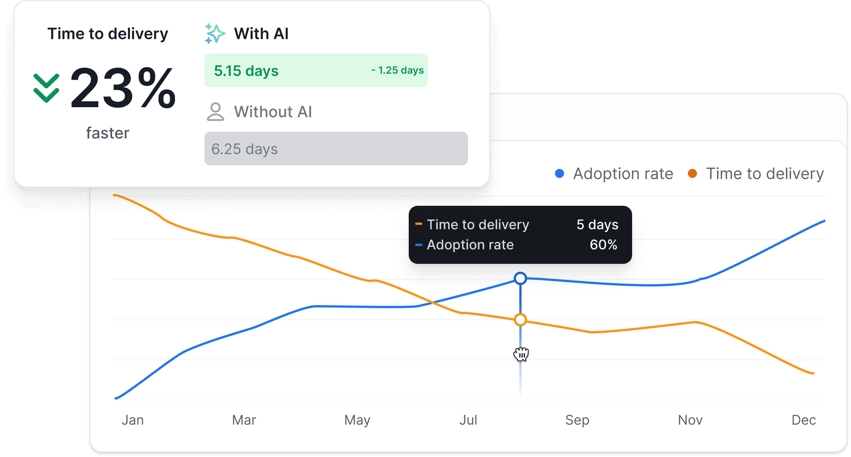
With Axify AI Adoption & Impact, you can compare delivery patterns before and after your Copilot adoption pilot. This shows you where usage determines faster delivery or new bottlenecks.
Pro tip: At the end of this article, you will get a 30/60/90-day plan for running that review, so keep reading below.
Many engineering teams enabled GitHub Copilot for everyone before defining where it should be used, how success would be measured, or what good AI adoption actually looked like. If that’s where your organization is today, review the rollout and tighten it.
Start by answering a few questions:
Use that review to decide your next step. For example:
| If you find... | Consider... |
| Teams have licenses but rarely use Copilot | Reclaim unused licenses or provide targeted training before renewing them. |
| Review time increased after adoption | Restrict Copilot to lower-risk tasks until review guidelines are updated. |
| AI-generated PRs are consistently larger | Introduce pull request size limits or require planning before multi-file changes. |
| Some teams benefit while others don’t | Stop treating Copilot as a company-wide standard. Expand it only where delivery data supports it. |
| Developers use Copilot for security-critical code | Create approved and restricted use cases instead of allowing unrestricted AI assistance. |
Not every Copilot use case carries the same level of risk. Engineering leaders should define where Copilot can be used freely, where it needs human review, and where it should be restricted.
Low-risk workflows are usually easier to validate. For example, a developer can run a generated unit test against the existing test suite and check whether it reflects the expected behavior. A PR summary is also easy to review because the reviewer can compare it against the actual code changes.
Higher-risk workflows need tighter controls. Legacy refactoring, security-sensitive code, and production changes often require deeper system context, undocumented behavior knowledge, or stricter compliance review. In these cases, Copilot can support the work, but it should not drive the change without human ownership.
The table below shows one way to classify Copilot use cases by workflow.
| Workflow | Copilot use policy | Why |
| Unit tests | Approved with validation | Easy to run, inspect, and compare against expected behavior |
| Documentation | Approved | Low risk and high time savings |
| PR summaries | Approved | Helps reviewers understand changes faster |
| Small bug fixes | Approved with review | Useful when the scope is narrow and context is clear |
| Code review support | Approved as second-pass support | Can flag issues, but a human reviewer still owns the decision |
| Cloud agent for backlog tasks | Pilot first | Requires policy, permission, and cost controls |
| Legacy refactoring | Restricted | Requires deep system context and knowledge of undocumented behavior |
| Security-sensitive code | Restricted | Needs strict review, approved patterns, and clear exclusions |
| High-risk production changes | Restricted | Should remain human-led by default |
Use GitHub policies to decide which Copilot features, models, and agents your developers can access. Without one policy owner, you can end up with different permissions across teams, uncontrolled paid usage, and agents making changes in important production repositories without an approved review path.
Your policy should define:
Agentic workflows need stricter governance than chat or autocomplete because they can plan tasks, modify files, and open pull requests. That doesn’t mean teams should avoid them, but access should start with clear permissions, repository boundaries, review requirements, and cost controls.
Adoption data backs that caution. According to DORA’s 2025 report, 61% of respondents had never used autonomous agent mode, while only 4% used it hourly or more.
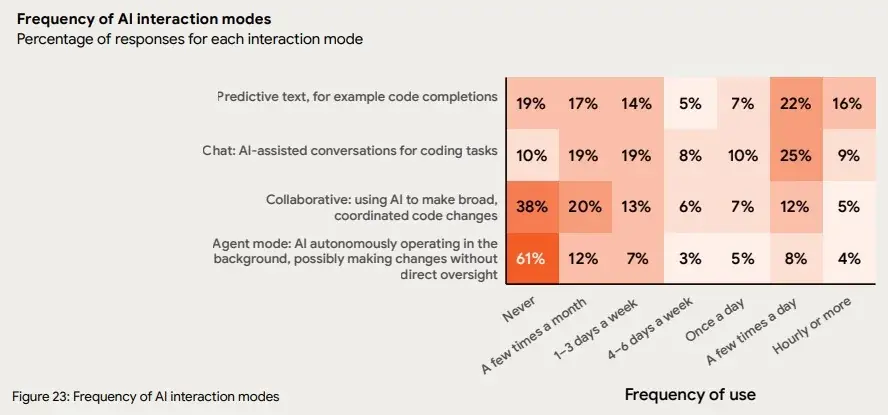
Source: DORA 2025 Report
Our advice: pilot agent access with experienced teams before you expand it, and keep low-risk features such as Chat and inline suggestions broadly available. Apply stricter controls when you allow agentic workflows, expensive models, production repositories, or regulated code because each one increases cost, access, or review risk.
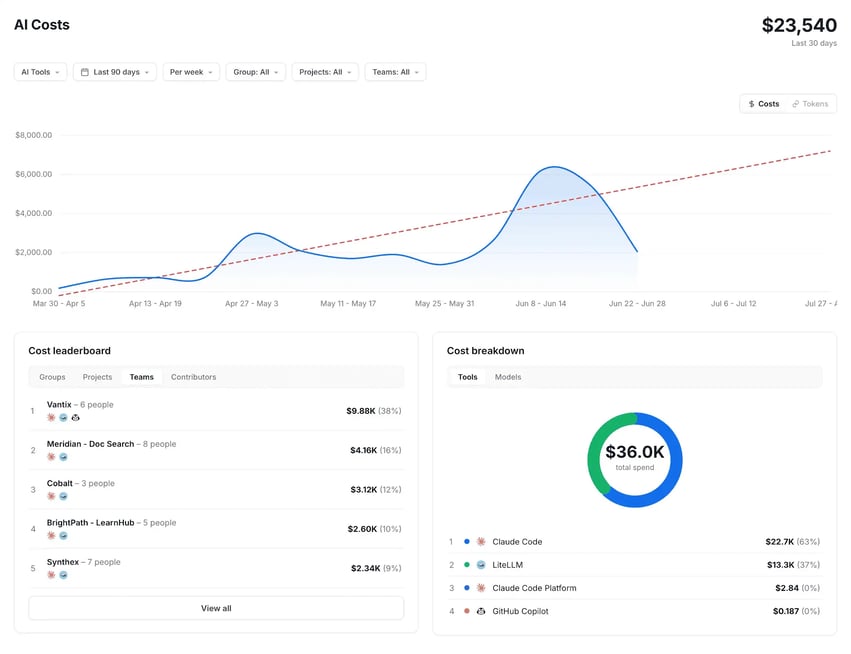
After you change policies, use the AI cost view in Axify AI Adoption & Impact to see how usage and cost change by team, tool, and model, and whether tighter access actually reduces premium consumption or just shifts spending elsewhere.
You can use content exclusion when selected files in your organization’s codebase should never guide Copilot’s output. After you exclude a file, Copilot does not use it for inline suggestions, Chat responses, or code review. This reduces the chance that you receive AI-generated code based on sensitive data or outdated patterns.
Good candidates for exclusion:
Content exclusion helps reduce the chance that Copilot uses sensitive files as context, but it does not replace repository-level governance. Engineering leaders still need repository permissions, secret scanning, code scanning, and code-owner review rules to control access, detect exposed credentials, and require approval for high-risk changes.
Remember: Review exclusion rules whenever teams add repositories, reorganize directories, or move sensitive files. A policy that worked for last quarter’s repository structure may miss sensitive files after a migration or refactor.
Use custom instructions to make Copilot follow your organization’s development standards more consistently.
You can define instructions at two levels:
Repository instructions are especially useful because every codebase has different constraints. If developers have to repeat these rules manually in each prompt, important details can be missed. That can lead to inconsistent outputs across teams, even when they use the same tool.
Small prompt differences change Copilot’s output more than most teams expect. In one study of 892 Java methods, equivalent prompts produced different recommendations about 46% of the time and changed correctness in roughly 28% of cases. Custom instructions give teams a shared baseline, but each output still needs review and validation.
You can use custom instructions to standardize:
Pro tip: Version repository instructions and update them through pull requests. This lets teams review, approve, and trace changes to Copilot guidance the same way they review other engineering standards. You can also check out our guide on Cursor best practices for another repository-level instruction workflow.
Because Copilot can use repository custom instructions, you can direct it to check project-specific testing, security, and logging requirements. Use its output as an early review pass on selected pull requests and uncommitted changes.
You can see its potential in the 60 million Copilot code reviews generated by early 2026, where 71% produced actionable feedback, and each review generated 5.1 comments on average. This result supports early-pass use, although you still need to check whether the comments help human reviewers or add unnecessary work.
To introduce Copilot review safely:
To judge whether this process helps you, we recommend monitoring:
Review these metrics together because faster automated feedback provides little value if you spend more time dismissing comments or correcting missed defects.
Copilot cloud agent is one of several AI coding agents that can research a repository, create a plan, change files, run commands in a GitHub Actions-powered environment, and open a pull request. Because the agent can act across several steps, your pilot should start with narrow task boundaries, low-risk repositories, and clear review requirements.
Start with tasks where reviewers can verify the result quickly:
Task selection matters because AI gains are not equal across all work. According to the 2026 DORA ROI report, AI-assisted development produced 35% to 40% productivity gains on simple greenfield tasks, while gains on complex legacy work were 10% or less.
So start cloud agents on simple, verifiable work and widen access later.
At first, avoid:
To control the pilot:
Expand access only after you see consistent review outcomes, low rework, and acceptable costs across several completed tasks.
Model Context Protocol (MCP) is an open standard that lets Copilot and other AI clients connect to approved external systems, tools, and data sources across IDE, CLI, GitHub.com, and agent workflows.
When you need live data outside the repository for context analysis, MCP can supply it through approved tool calls. Because an MCP server can expose sensitive data or actions, treat each connection like an engineering integration with clear access controls.
To control access:
Pro tip: If you also use Claude Code, review our Claude Code best practices guide for the same access and verification controls.
With Axify MCP, you can ask Copilot or another MCP-compatible client about delivery and AI metrics, including cycle time, DORA trends, and AI adoption. Access is read-only and follows your existing Axify permissions, so teams can use live engineering context without giving agents unrestricted access to operational data.
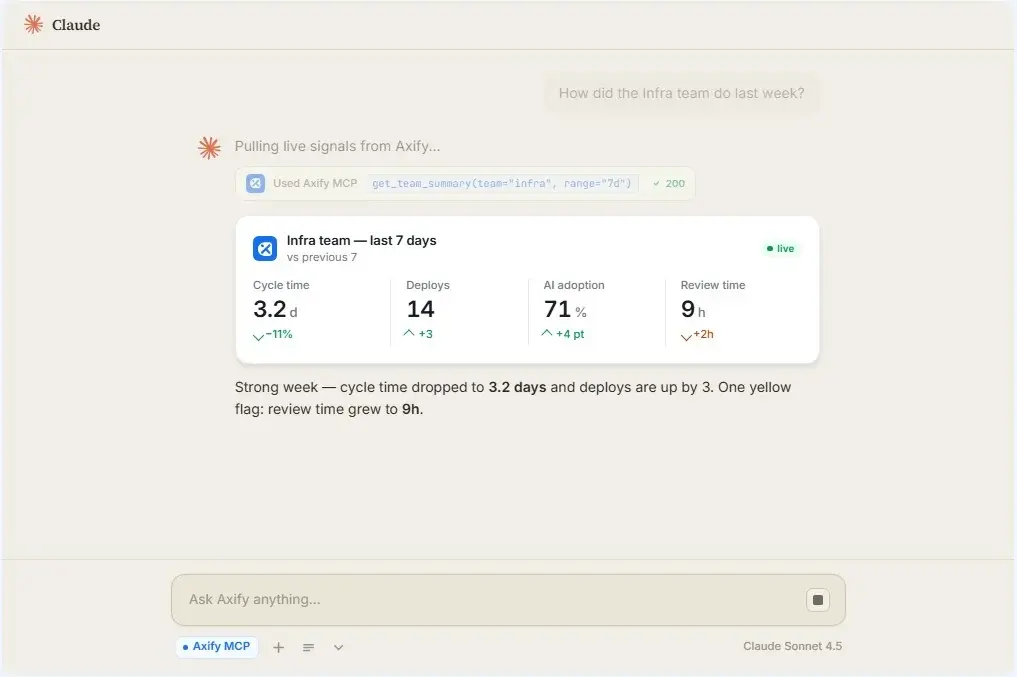
Track adoption to see whether the teams and workflows you approved are actually using Copilot. GitHub metrics can show adoption, activity, code generation, chat usage, agent usage, code review activity, and PR lifecycle data. For team-level analysis, you may need to combine user-team reports with per-user metrics.
The signals worth watching:
With the Adoption capability in Axify AI Adoption & Impact, you can compare licensed users, active users, usage frequency, acceptance, and habitual use by team. Where usage stays weak is usually where training should go first.
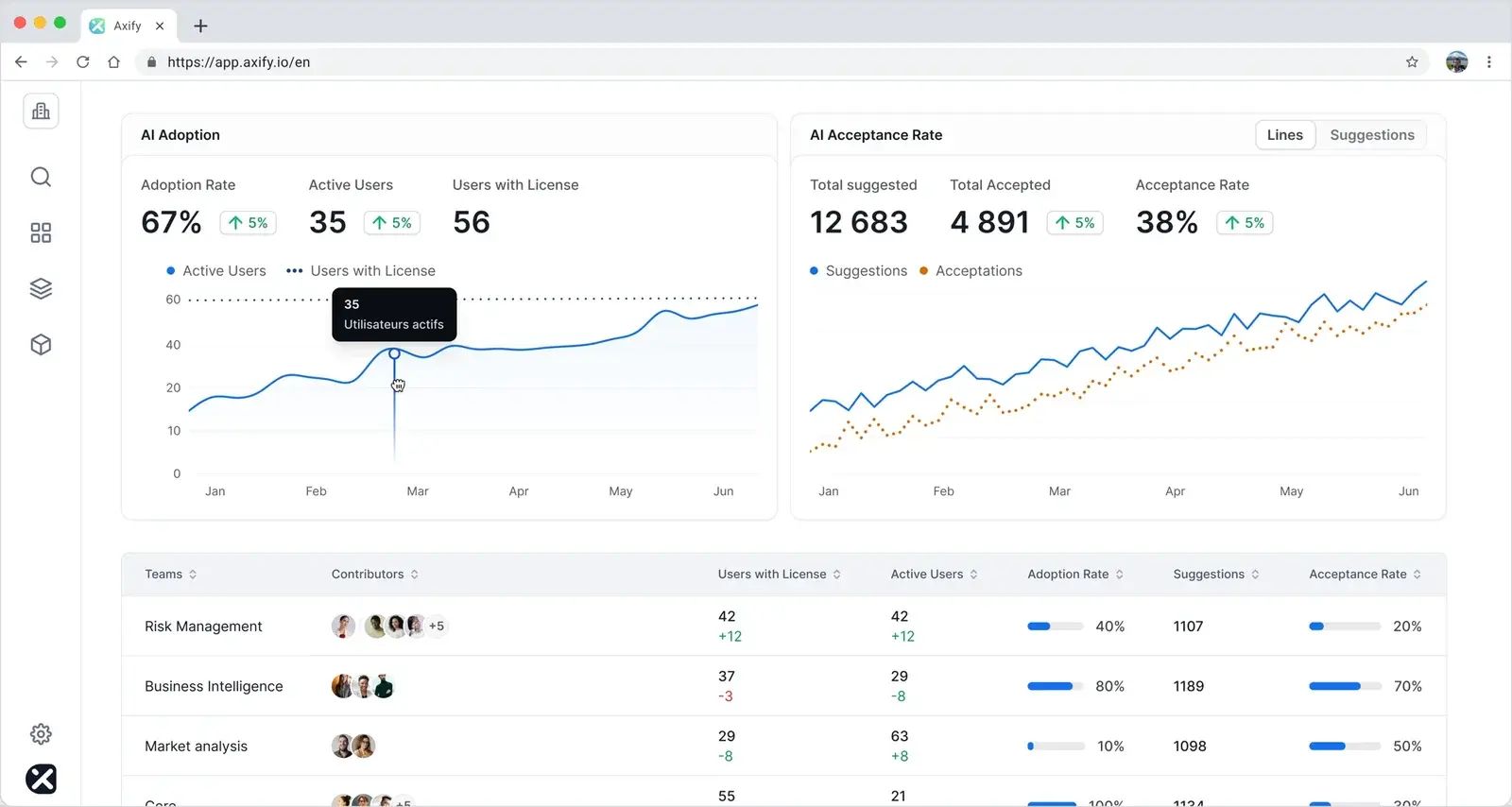
Copilot usage metrics tell you how people use the tool. They cannot prove whether you improved delivery.
To judge impact, you need to compare delivery and quality metrics before and after implementing Copilot over the same period.
At a minimum, track:
Pro tip: Use our GitHub Copilot metrics guide to understand what each variable can tell you, but always analyze them in context.
Context matters. An open-source project study found that productivity increased 6.5% after Copilot adoption, but integration time increased 41.6% and code quality showed no significant change. One good-looking metric can hide a cost further down the pipeline.
For example, suppose you increase deployment frequency from 10 to 12 releases per week during an eight-week pilot. If customer support tickets tied to new releases rise from 20 to 31 during the same eight weeks, you should inspect release quality before expanding Copilot.
With the Impact capability in Axify AI Adoption & Impact, you can compare cycle time, PR review time, throughput, and delays by team before and after adoption. It won’t prove that Copilot caused a change, but it shows you which teams to look at first.
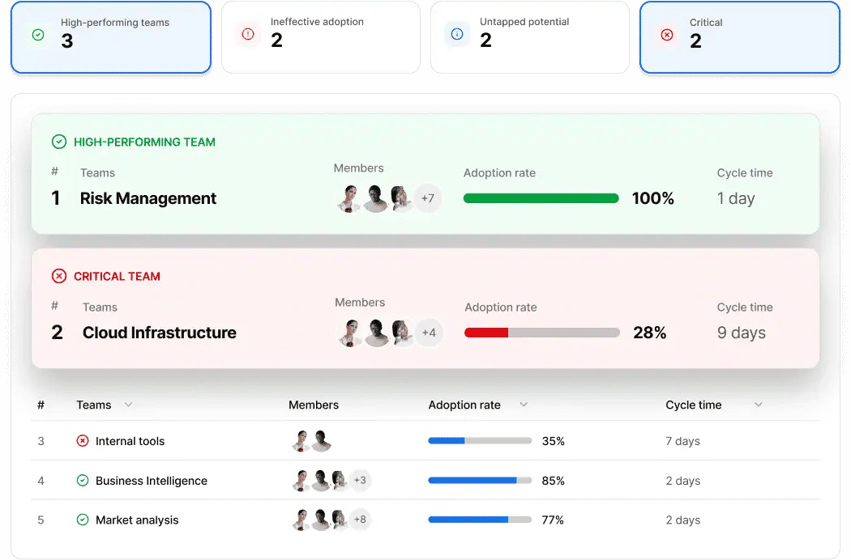
Copilot costs can rise as you use premium models, code review, cloud agents, and longer agentic workflows.
Under GitHub’s June 2026 pricing model, you pay $19 per user each month for Copilot Business and receive $19 in monthly AI Credits. With Copilot Enterprise, you pay $39 per user and receive $39 in monthly AI Credits.
Once your pooled credits are exhausted, you can allow additional usage at published model rates or cap spending. Your code completions and Next Edit suggestions remain included, while code review also consumes your GitHub Actions minutes.
To keep that spend under control:
Pro tip: Use our FinOps for AI guide to build these controls into your wider AI cost review.
With the Cost feature inside Axify AI Adoption & Impact, you can see AI tool spending by team and forecast future costs from your adoption trends, then check whether higher spending lines up with shorter cycle time or more completed work.
We recommend comparing Copilot, Claude Code, Cursor, and other tools across the same teams, task types, and review period. If you compare a mature Copilot rollout with a new tool pilot, your results will reflect rollout age and training differences.
Pro tip: Use our AI coding assistants guide to identify tools worth testing.
During each matched pilot, compare:
With Axify AI Adoption & Impact, you can break down AI cost and token usage by tool and model, then compare adoption and delivery metrics across the teams using each tool. This gives you a shared baseline before you decide which tool to standardize on.
A 90-day experiment gives you enough time to establish a baseline, observe adoption, and check delivery changes. Separating these phases keeps you from expanding access based on early usage alone.
Here is how you can structure your review.
In the first 30 days, grant access to pilot teams and configure policies, content exclusions, custom instructions, and approved workflows. Record your baseline cycle time, PR review time, deployment frequency, rework, defects, and AI spend before the pilot starts.
From days 31-60, review your active users, feature usage, code review activity, cloud agent usage, and adoption by workflow. Use these findings to identify where you need training, clearer standards, or restrictions.
Our AI coding tools’ impact guide shows you how to include review, rework, and enablement costs in your assessment.
During the final phase, compare Copilot’s adoption impact against your delivery baseline. Expand workflows where you see faster delivery with stable rework and defect rates. Restrict workflows where Copilot usage is high and delivery results remain unchanged or worsen.
Remember: Axify helps you run this 30/60/90-day review with actual delivery data, so you can assess Copilot’s impact on your cycle time, deployment frequency, change failure rate, and AI spend before deciding what to scale.
Before you approve another Copilot seat, ask each pilot team to name one workflow that improved and show the delivery data behind that claim. Compare the same type of work over the same review period, and assess cycle time, rework, defects, and cost together.
If the team cannot explain why the result changed, keep the workflow in pilot status. Then check for other factors, such as team composition, task complexity, release pressure, or changes in review behavior.
This decision rule helps engineering leaders separate real adoption from surface-level activity. It also gives security, finance, and engineering teams a shared standard for deciding when Copilot access should expand.
Want to connect your Copilot usage with delivery data? Start your 14-day free trial of Axify.
Junior developers tend to see larger task-completion gains from GitHub Copilot. In three randomized experiments involving 4,867 developers, Copilot increased completed tasks by 26.08%, with larger gains for less-experienced developers.
That does not mean Copilot is useless for senior developers. They may save time on boilerplate, test scaffolding, documentation, and code exploration, but their most valuable work involves architecture, tradeoffs, debugging ambiguous systems, and reviewing risk. Those tasks depend more on context and judgment, so Copilot’s output may require more correction or provide a smaller measurable speed gain.
No. Give licenses to developers whose workflows fit approved Copilot use cases. During your pilot, compare active usage, task type, delivery impact, and cost by team, then reclaim unused seats or delay access for teams without a validated use case.
GitHub Copilot should never handle security-sensitive code, complex architecture decisions, unstable legacy refactors, regulated logic, or customer-critical production changes alone. For this work, you need a qualified human to define requirements, inspect the diff, verify tests, and approve deployment.
Engineering leaders should review Copilot usage monthly after rollout and every two weeks during the first 90 days. This schedule lets you catch unused seats, unexpected credit consumption, weak feature adoption, larger changes, or rising rework before you approve wider access.
No, GitHub Copilot metrics do not prove productivity gains. You can use active users, accepted suggestions, Chat requests, and agent sessions to measure activity. Then, connect them to cycle time, deployment frequency, rework, defects, and cost over the same review period.
You know your Copilot rollout is working when approved workflows show sustained use and better delivery results without higher rework or defect rates. To verify it, compare similar tasks from the same team across equal periods before and after adoption.
The biggest risk is increasing code-generation volume faster than your review capacity. We can see this pattern after Copilot adoption in a maintenance and reviewer-load study. Core developers reviewed 6.5% more code while their original-code productivity fell 19%. Watch reviewer workload before you expand access.