Delivery Performance
19 minutes reading time

You might already check burndown charts in Jira before sprint planning. But if the same issues keep carrying over, you need to see why. Did your team take on too much, or did those issues spend several days waiting for review?
Jira holds the data to answer that question, as long as you pick the right metrics and read them together. In this guide, we'll cover:
Let's get started!
Jira metrics measure how much work your team completes, how long issues take to finish, and where work builds up in your workflow. They're calculated from issue data, including sprint progress, completed issue counts, and the time issues spend in each workflow stage.
These metrics help you understand how work moves through your team's workflow. For example, measuring cycle time shows how much time passes between starting work on an issue and completing it.
Or if your team completed fewer issues over the last two sprints, you can check whether those issues spent longer waiting for review. That gives you a specific problem to discuss in your sprint retrospective and a possible change to try, such as assigning reviewers earlier.
Of course, issue counts alone can misrepresent team performance because tasks differ in size and difficulty. Use them alongside time-related metrics and issue details before deciding what needs attention. Jira metrics are one input into your broader software development KPIs, not a full picture of delivery on their own.
Check out this video if you want to learn more:
The most useful Jira performance metrics are throughput, cycle time, work in progress, time in status, sprint commitment, and defect resolution time, read together rather than one at a time. Each one answers a different question about how your team delivers, and each one can mislead you on its own.
| Metric | What it tells you | Where to find it in Jira | Watch out for |
|---|---|---|---|
| Throughput | How many work items your team completes per week or sprint. | Created vs. Resolved gadget, saved filters, or the flow metrics dashboard template in Insights. | Items differ in size. A rise can mean more small tasks, not more value. |
| Cycle time | How long an issue takes from the start of work to done. | Control Chart. | The result depends on which columns you include. |
| Work in progress (WIP) | How many issues are started but not finished. | Board columns and the Cumulative Flow Diagram. | Items waiting for review still count as WIP. |
| Time in status | How long issues sit in each workflow stage, such as Code Review or Testing. | Control Chart with selected columns, or a Time in Status app. | Calendar time and working hours give different results. |
| Sprint commitment and velocity | How much of the planned sprint scope your team completed. | Velocity Chart and Sprint Report. | Estimation scales differ between teams, so don't compare them. |
| Defect resolution time | How long bugs take to get fixed. | A filter on the Bug work type, or the Resolution Time report. | Compare defects of similar severity, and check reopened issues. |
Use these metrics to understand how the team's system of work performs, not to rank individual developers. If cycle time rises while throughput stays flat, the problem is usually a stage where work waits, not a person who works slowly.
Pro tip: Jira metrics cover the planning and tracking side of delivery. For code review and deployment measures that Jira doesn't capture, see our guide to the top software engineering metrics to track.
Jira reports are built-in analyses of work-item data. They present metrics such as remaining sprint work, completed estimates, and time spent in workflow stages. The report you choose determines which delivery question you can investigate.
| Question you need to answer | Jira report to use | What to check |
|---|---|---|
| Are we completing the sprint's planned work? | Sprint Burndown Chart | Remaining work, scope changes, and periods with little progress. |
| How much estimated work does this team usually complete? | Velocity Chart | Completed estimates across several sprints, using the same team's estimation scale. |
| Are completion times increasing or becoming less predictable? | Control Chart | Elapsed time across selected workflow stages, including variation between issues. |
| Where is unfinished work accumulating? | Cumulative Flow Diagram | Workflow bands that widen over time, indicating more issues in a particular stage. |
| How is a larger initiative progressing? | Epic Burndown or Release Burndown | Remaining scope and completion trends across sprints. |
Check the scope before interpreting the result. A Control Chart measures elapsed time across the columns you select. Including a waiting stage changes what that measurement represents.
Use reports to investigate a delivery question, then choose dashboard gadgets for the measures you need to monitor regularly. Some reports have corresponding gadgets; others, including the Control Chart and Cumulative Flow Diagram, are accessed separately.
To build a Jira metrics dashboard, create a dashboard, add gadgets, and configure them to show your team's issues using saved filters. Start with the native options below, then add apps if you need more detailed workflow reporting.
Here are the steps you need to follow.
Go to Dashboards → Create dashboard, name it, and set its sharing permissions. Save filters for the space, team, or sprint you want to review, and make sure viewers can access those filters too.
Keep the scope clear. For a sprint review, show that sprint's work. A list of every issue your team has ever completed makes current progress harder to assess.
Choose Agile dashboard metrics based on what you need to check. Select Edit → Add gadget, then configure each gadget's data source.
Useful starting options include:
Open Reports and, where shown, select More reports to access the Control Chart and Cumulative Flow Diagram. These charts are separate reports, not native dashboard gadgets. Confirm that you're viewing the intended board before comparing results.
Use the Control Chart to review completion times and the CFD to identify stages where work accumulates. Compare the same board and reporting period. If completion times rise while the review band widens, investigate issues waiting for review.
If you need to see how long individual issues spend in "Code Review" or "Testing," consider a Time in Status app with dashboard gadgets. Check whether its calculations use calendar time or working hours before comparing results with other reports.
Built-in gadgets can't combine multiple data sources into one chart. Connecting issue progress with repository, build, and deployment data therefore requires additional reporting tools.
Team benchmarks and explanations of changing trends also need context beyond issue counts and status charts.
That brings us to Axify's Value Stream Mapping and its view of the steps between development and deployment.
Jira's reports help you focus on sprint tracking, but what if you need a bigger picture? Axify's Value Stream Mapping combines work-item, pull-request, and deployment data from Jira, GitHub, GitLab, Azure DevOps, or Bitbucket to show delivery stages from planning to production, including how long work spends in each stage.
Instead of just tracking tasks, you get a clear view of where time is spent and where delays slow your team down. Axify's VSM allows you to:
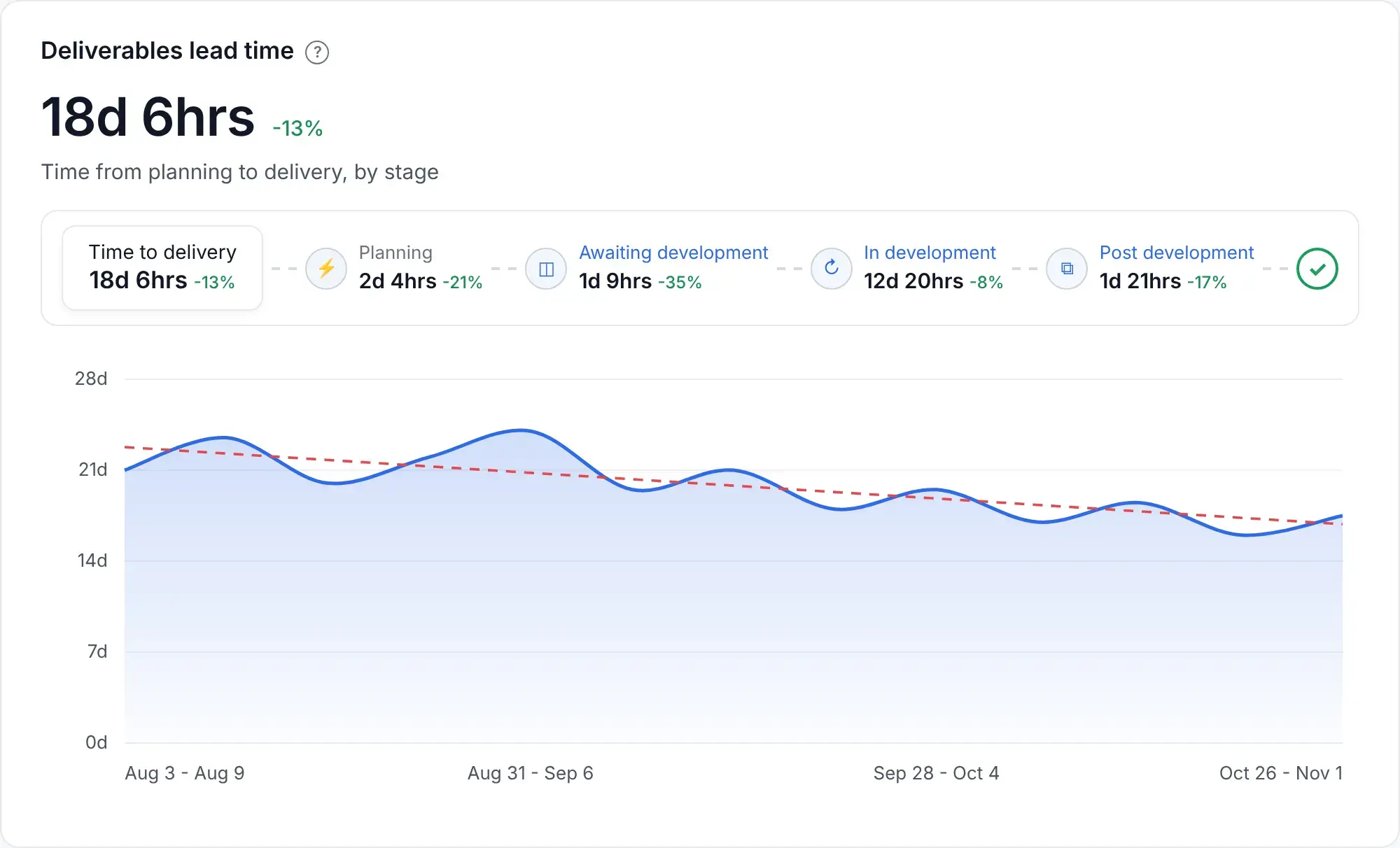
Teams that inspect these stages continuously see measurable results. Using DORA metrics and Value Stream Mapping, the Business Development Bank of Canada reached up to 51% faster delivery time over three months, with up to 81% less time spent in quality control.
Note: Axify Intelligence adds recommendations to the value stream analysis. Use them to select a workflow change to test, then review the affected stage's waiting time and overall delivery time to see whether the change helped.
Flow metrics in Jira describe how much work your team completes, what types of work it delivers, and how long items spend moving through the workflow. Atlassian's flow metrics dashboard template includes six metrics:
| Metric | What it measures | How to use it |
|---|---|---|
| Throughput | The number of work items completed during a selected period. | Check whether completed work is increasing or decreasing, accounting for differences in item size and type. |
| Work profile | The proportion of completed items belonging to each work type, such as bugs, stories, or tasks. | Check whether the mix of delivered work has shifted. This measures item counts, not the share of engineering effort. |
| Lead time | Elapsed time from an item's creation to its completion. | Assess how long requests take to finish, including time spent waiting before work starts. |
| Cycle time | Elapsed time from work starting to completion, including waiting between stages. | Investigate changes in completion times after work enters the delivery process. |
| Work in progress (WIP) | Work items that have started but remain unfinished, whether active or waiting. | Identify work accumulating faster than the team completes it. |
| Flow efficiency | Time spent in designated active statuses as a percentage of total cycle time. | Assess how much elapsed time is classified as active work. Two active days out of ten elapsed days gives you 20%. |
Review these measures together. If cycle time and WIP rise while throughput falls, inspect the stages where unfinished work is accumulating. Check work profile too: a shift toward different work types may affect the comparison.
The template is available in Insights (formerly Atlassian Analytics), which Atlassian includes in its Standard, Premium, and Enterprise plans. Some data sources, such as the Atlassian Data Lake, are limited to Enterprise, so check what your plan connects before you rely on it.
Warning: Configure active and waiting statuses carefully. Counting "Waiting for Review" as active inflates flow efficiency and hides the delay. For a closer look at how too much WIP drags this number down, read our guide on work in progress and flow efficiency.
AI coding tools change how work moves through Jira before they change the numbers you report. Jira Cloud now lets you track AI agent sessions linked to your work items, respond to agents that are blocked, and review finished work. That tells you what agents are doing on a given issue. It doesn't tell you whether AI use is shortening delivery across a team, or what it costs.
As AI adoption grows, watch three signals in your Jira data:
To answer whether AI helps, you need AI usage and cost data next to your delivery data. Jira doesn't hold either.
Axify connects AI tool usage with your team's delivery data and spending, so you can check what changes as adoption grows.
Here's what you can track with Axify AI Adoption and Impact:
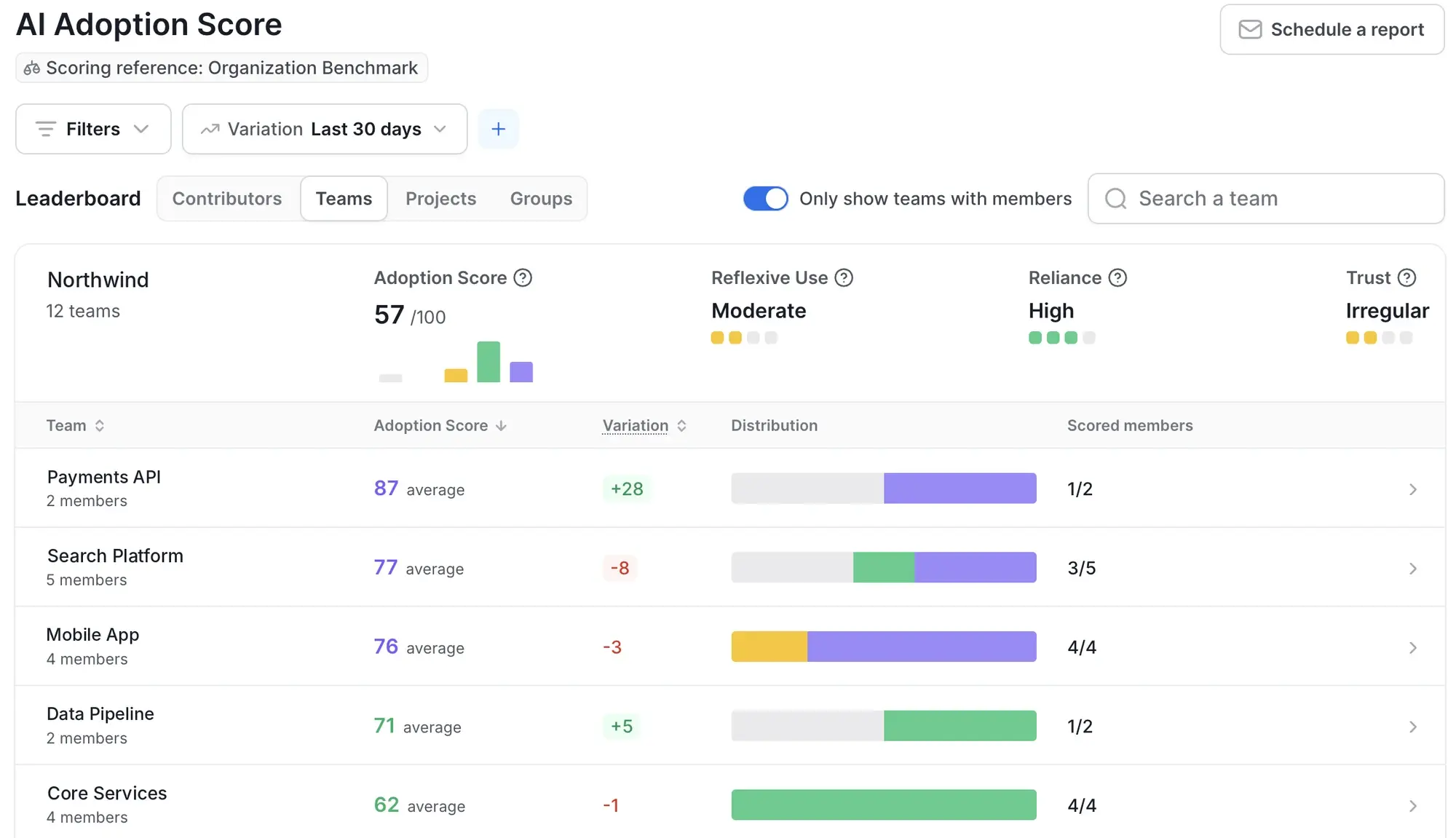
When measuring AI impact, compare usage, delivery, and spending over the same month. If AI tool usage increases while review time grows, investigate the review delays before buying more licenses. Higher usage by itself doesn't establish that a tool helps your team finish work faster.
Pro tip: For AI cost optimization, review spending and delivery metrics over the same period. A lower cost per completed item could reflect smaller changes, so check review feedback and test results before concluding that a tool produces usable code more cheaply.
Jira bug records can help you track defect volume and resolution trends. Measures such as defect density, escape rate, and test coverage require additional code, release, or testing data. Here are the measures to consider and what each can tell you:
Tracking these defect metrics helps you decide where to focus testing and process improvements. The goal is faster fixes, better prevention, and higher-quality software.
Use Axify's flow and DORA metrics to investigate delivery delays and release failures alongside your Jira defect records. Longer review times and a rising change failure rate indicate different problems: the first calls for a review of waiting work, while the second calls for examining failed deployments and the changes behind them.
Axify Intelligence, which we mentioned above, analyzes delivery patterns and provides contextual recommendations when metrics change. Use that context to choose what to investigate with the team, then check the relevant work items, pull requests, or deployments before making a process change.
Yes, you can report software quality metrics in Jira using native issue reports, custom fields, and integrations.
Before building the report, check that the underlying records support the comparison you want to make:
Keep backlog reporting separate from conclusions about software quality. Created vs. Resolved can show whether unresolved reports are accumulating, but a shrinking backlog does not establish by itself that releases contain fewer defects.
Native issue reports alone don't supply code coverage, test execution results, or deployment failure data. So, you need to connect testing apps and delivery tools to add that context before assessing release stability.
The Axify DORA metrics dashboard brings together deployment frequency, lead time for changes, change failure rate, and failed deployment recovery time. DORA's current model also includes a fifth metric, deployment rework rate.
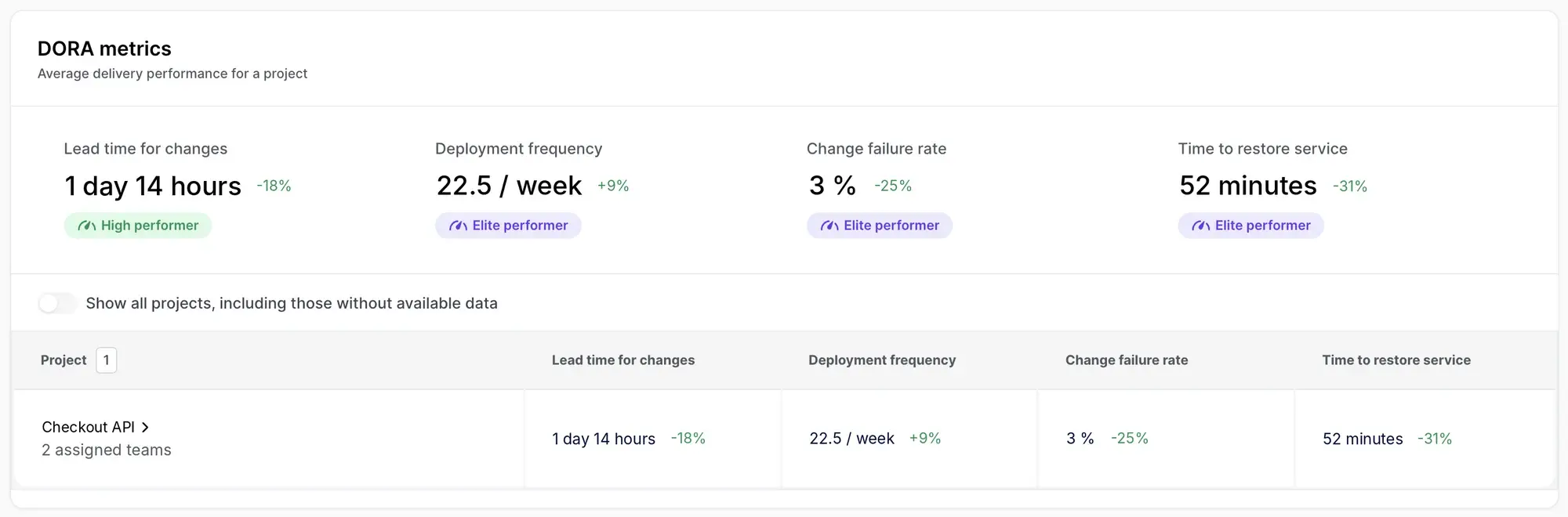
Review these DORA metrics for the same application and reporting period. For example, if deployment frequency rises this month while unplanned, incident-driven deployments also increase, more releases may reflect corrective work. Check the incident-linked deployments before deciding that your team is delivering planned changes faster.
Newforma used this kind of continuous inspection of DORA metrics to reduce lead time for changes by 63% and deliver 22X more often over five months.
To estimate project progress in Jira, compare completed work and remaining scope with the original plan. Use the flow metrics explained above to check whether the team's recent delivery pace still supports the target date.
Apart from these, you can also track:
Review these five questions:
Keep the reporting boundary consistent. An issue marked Done may still be awaiting deployment, so distinguish development completion from production delivery when reporting a release milestone.
Use the review to make a concrete decision: reduce scope, resolve a dependency, change the sequence of work, or revise the delivery date.
Use Axify to examine what changed behind a project update.
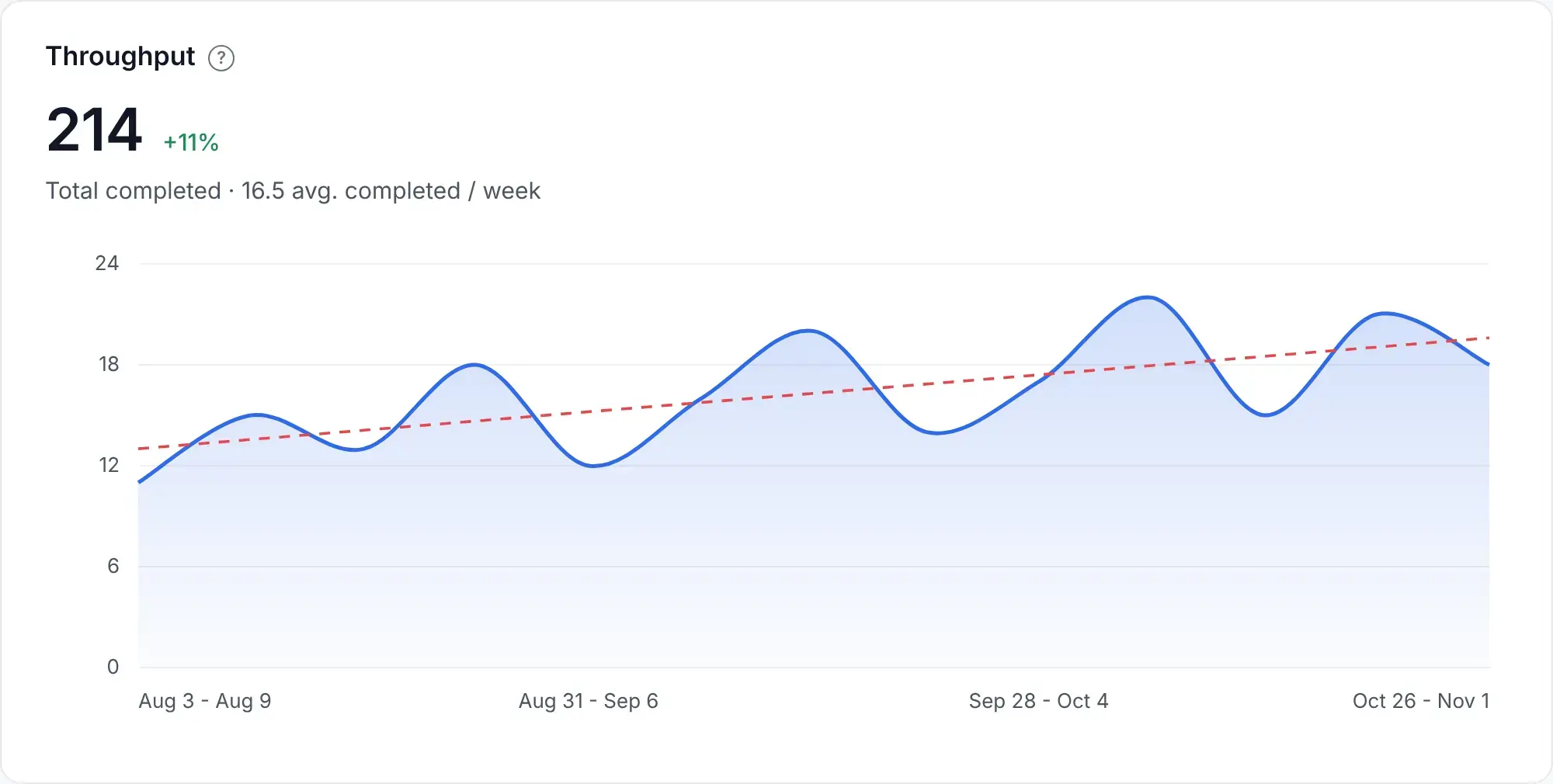
If less work finished than expected, compare throughput across recent periods and check whether the mix of work changed.
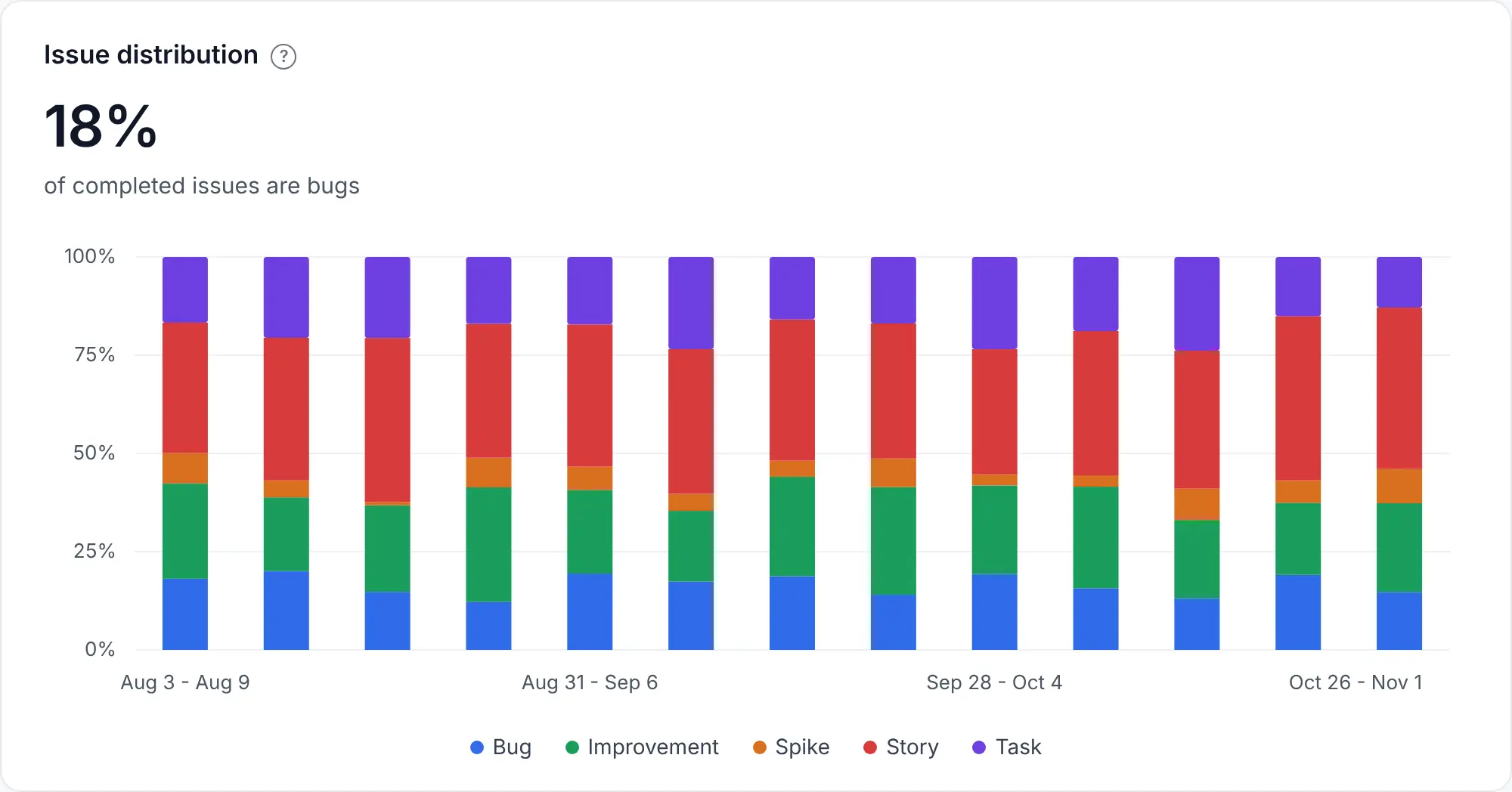
The issue distribution view shows the share of completed work by issue type, so you can check whether more of it went to bugs, maintenance, or other work outside the planned feature scope.
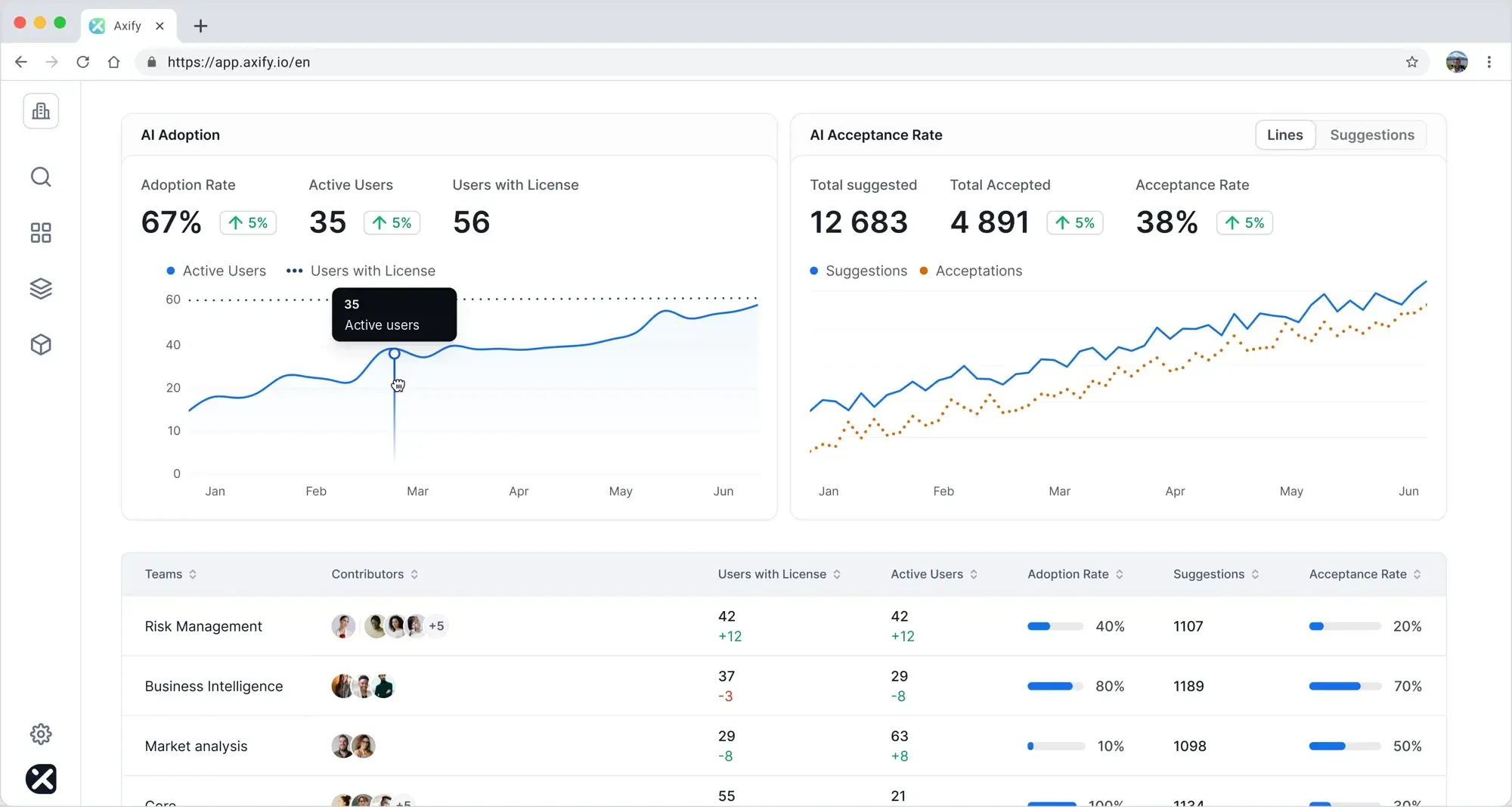
AI Adoption and Impact adds AI performance metrics, including usage frequency and acceptance rates. You can review these alongside cycle time and review time for the same team and month to check whether increased adoption coincides with faster completion or longer reviews.
Our VSM tool shows how long work spends in each delivery stage.
Next, bring the findings back to the remaining plan.
For example, if bug work increased, check which planned items were deferred and whether the next milestone still fits the team's available capacity. Confirm the affected items with the team before revising the estimate.
Axify Intelligence analyzes those patterns and recommends workflow changes you can make. This gives you a specific delay to investigate and an action to consider.
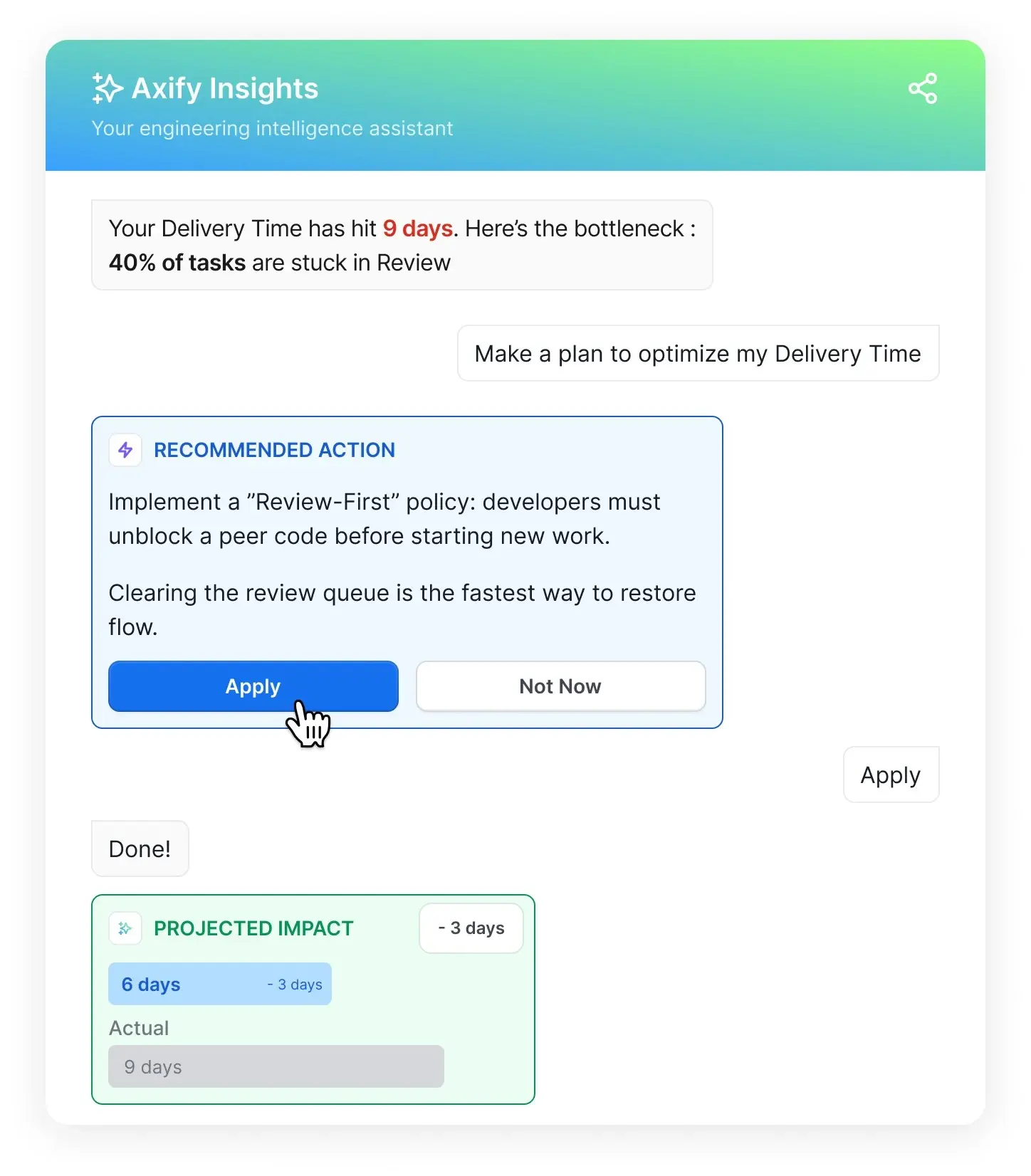
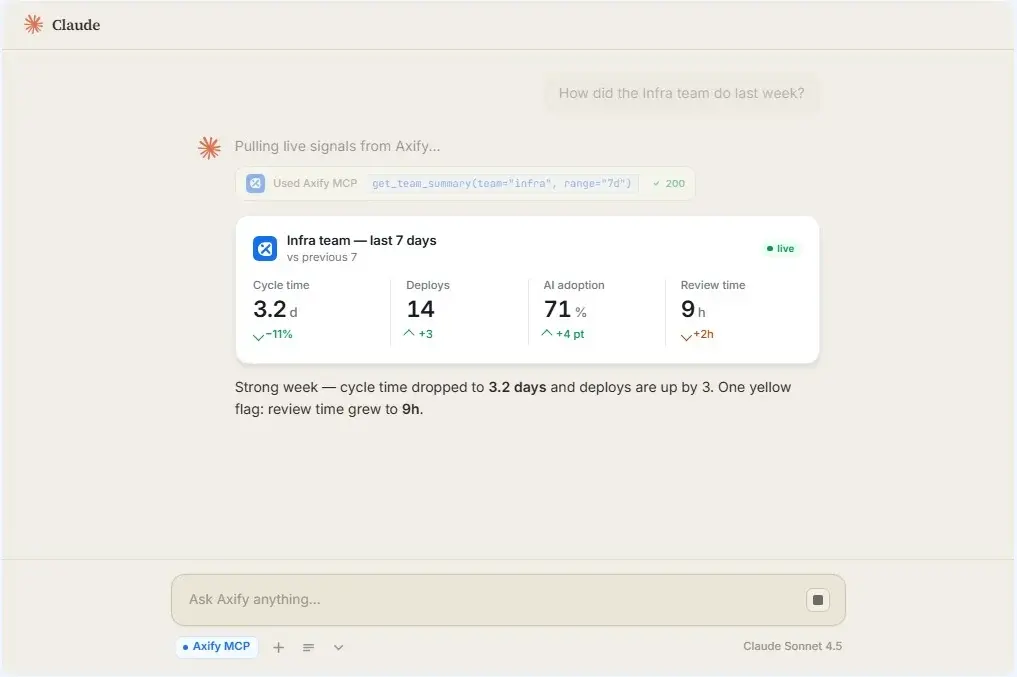
With Axify MCP, you can query that data from a compatible AI assistant. Ask how your team's review time changed between the last two sprints, for example. Queries use live data and follow your existing Axify permissions.
To report on issues submitted by a particular person, filter Jira work items by the Reporter field and save the filter. Use Filter Results to inspect those items or Issue Statistics to group them by status or another available field.
For example, you can review:
These insights can help engineering managers like yourself see how incoming work is distributed, track responsiveness, and spot issues with team collaboration. Use them to understand where requests come from, not to judge individuals.
Jellyfish uses Jira ticket movements and fields to power its allocation and investment views, which show how engineering effort is distributed across projects and work categories. Its Life Cycle Explorer, launched in 2023, tracks issues through Jira workflows and groups the time into refinement, work, review, and deployment phases.
Axify connects Jira work items with pull requests and deployments through flow metrics, DORA dashboards, and Value Stream Mapping, where you can see how long work spends in each delivery stage. Its AI Adoption and Impact feature puts AI usage and cost next to cycle time and throughput at the team or project level, so the AI discussion stays tied to delivery.
Both support workflow analysis, so compare them using the same team and month. Check how each defines completion, calculates review time, and groups work before deciding which reports fit your delivery reviews. If you're weighing options, our list of Jellyfish alternatives covers more tools.
Jira already tracks enough to show you whether your team is finishing what it plans and where work waits. Start with a small dashboard built on saved filters, read throughput, cycle time, and WIP together, and use the Control Chart and Cumulative Flow Diagram to find the stage where issues pile up.
When you need to see the whole path from ticket to production, or check whether AI coding tools are actually speeding up delivery, Jira alone won't answer it. Axify connects Jira with your repositories, deployments, and AI tools, so you can see AI usage, impact, and cost next to the delivery metrics you already track.
Try it on your own Jira data. Get started with a free 14-day trial, no credit card required.

Metrics in Jira are measurements calculated from work-item data, such as completed issue counts, sprint progress, resolution times, and time spent in workflow stages. They help you investigate planning and delivery patterns, but issue counts or story points alone do not establish productivity.
Assess delivery performance in Jira using completed work, cycle time, WIP, and sprint trends. Compare consistent reporting periods and inspect the issues behind significant changes. Measuring commit-to-production lead time also requires connected version-control and deployment data; Jira issue reports do not provide the full calculation.
Yes, Jira has analytics through built-in reports, dashboard gadgets, and space insights. Burndown charts, cumulative flow diagrams, and velocity reports show progress and workflow patterns. Available reports depend on your space configuration, and broader analysis may require Insights, integrations, or additional apps.
Jira's native metrics describe what its built-in reports measure, while flow metrics describe how work moves through a process. They overlap through throughput, cycle time, and WIP. Flow efficiency adds the proportion of elapsed time spent in active workflow stages.
No, Jira's native issue reports alone cannot calculate all five DORA metrics. You need commit, deployment, and incident data to measure production delivery. Jira integrations, Atlassian reporting products, or engineering analytics tools can supply that additional data and the required calculations. Our guide on how to implement DORA metrics walks through the setup.
Compare Jira reporting with Jellyfish or Axify using the same team, reporting period, and metric definitions. Check connected data sources, workflow-stage detail, benchmark relevance, and reporting effort. Then test whether each tool answers your actual delivery question.
For most non-technical stakeholders, the best Jira dashboard shows completed work, remaining scope, blocked issues, and upcoming releases in plain language. Keep filters consistent and label the reporting period clearly. Our Agile dashboard setup guide explains how to organize these views.